
Technik Go LLC is professionals at web development, digital marketing, and IT consulting. Our modern designs, innovative tech solutions, and innovative marketing tactics will transform your online presence and optimize IT processes for outstanding efficiency.
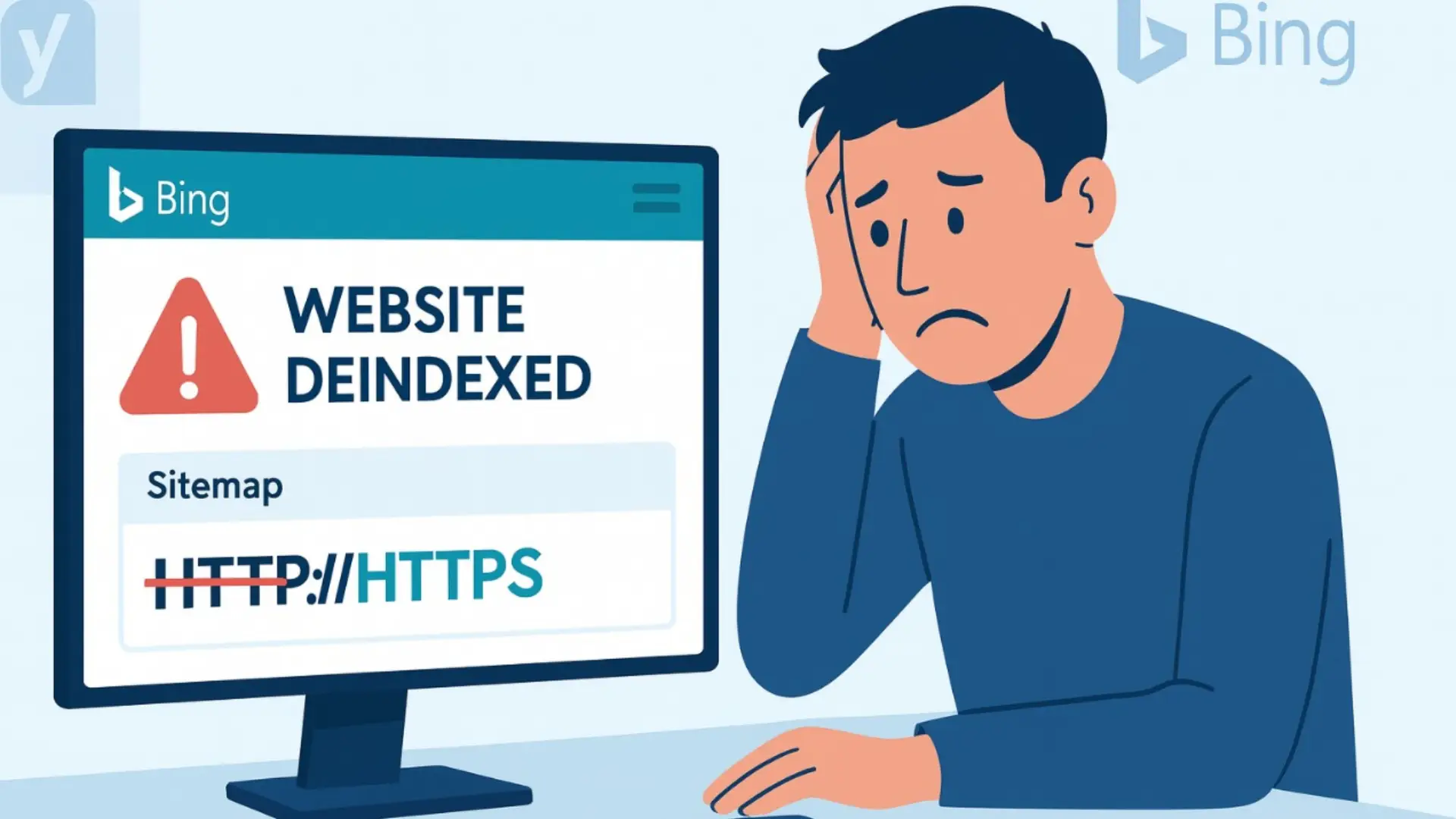
Have you ever opened your Bing Webmaster Tools and suddenly noticed something strange – your website traffic dropped, and when you searched for your site, it was just gone? That’s exactly what happened to me one morning.
Everything looked normal at first. Google was still indexing my pages, my website was running smoothly, and there were no error messages. But when I checked Bing, my entire website had disappeared from search results. No pages. No posts. Nothing.
At first, I thought maybe Bing was just slow to update, or maybe it was a small crawl delay. But after a few hours of checking and re-checking, it became clear: Bing had completely deindexed my site.
I started digging deeper to find out why Bing deindexed my site, and what I discovered was both surprising and frustrating – it wasn’t something I did wrong. It was actually caused by a small but critical Yoast SEO sitemap bug.
This bug was adding HTTP instead of HTTPS in my sitemap URLs. That tiny “S” missing from the link caused Bing to ignore the sitemap altogether and remove my pages from its search index. Imagine that – one small letter made my whole website invisible on Bing!
If you’re facing a similar issue like a sudden Bing deindex website problem or your site not appearing in Bing results, you’re not alone. This issue has quietly affected many WordPress users using Yoast SEO without them even realizing it.
In this blog, I’ll explain exactly what happened behind the scenes, how I fixed the Yoast bug that caused deindexing, and how you can make sure it never happens to you.
So let’s start from the beginning – how a small sitemap bug almost made my website disappear from Bing, and how I turned it around with a few simple fixes (with the help of Technik Go, of course).
After hours of checking logs, settings, and even plugins, I finally found the real culprit – it wasn’t Bing being buggy or slow. It was Yoast SEO, the plugin I trusted to manage all my site’s SEO settings.
Here’s what was happening:
Yoast SEO was generating my XML sitemap – the list of pages that tells search engines like Bing and Google where to find all the content on my website. But instead of creating a secure link (with HTTPS), it was accidentally sending an old-style HTTP version of my sitemap URL.
So instead of this:
https://yourdomain.com/sitemap_index.xml
It was sending this:
http://yourdomain.com/sitemap_index.xml
That tiny missing “S” (the difference between HTTP and HTTPS) made a huge difference.
Bing treats HTTP and HTTPS as two completely different versions of a site. Since my website runs only on HTTPS (like most modern, secure websites), Bing looked at the “http://” sitemap and thought,
“Wait a minute – this sitemap doesn’t exist or might be unsafe.”
As a result, Bing decided the sitemap was invalid and simply stopped indexing my pages. That’s what caused my entire site to vanish from Bing’s search results.
This issue, often called the “Yoast sitemap error HTTP vs HTTPS”, quietly causes trouble because Yoast doesn’t show an error message for it. Everything in WordPress looks fine – but Bing sees a broken link.
Google, on the other hand, didn’t have this problem because it automatically corrected the sitemap path to HTTPS. That’s why my pages were still showing up in Google results – but not on Bing.
So if you’ve ever wondered, “Why is my site still on Google but not on Bing?” or “Why did Bing suddenly stop indexing my website?” – there’s a good chance you’re dealing with the same Bing deindexing issue caused by Yoast.
The good news? Once I figured it out, the fix was easier than I thought.
In the next section, I’ll show you step by step how I discovered the bug, fixed the sitemap issue, and helped Bing reindex my entire website – with a little help from Technik Go.
After realizing my website disappeared from Bing, I started my detective work. I wasn’t sure where to start, but I knew something was wrong deep inside my SEO setup. So, I began checking everything one by one – from my sitemaps to my robots.txt file.
The first thing I did was open Bing Webmaster Tools – and there it was, staring right at me:
Indexed URLs: 0
That meant Bing had completely deindexed my entire website. All my pages, blogs, and service URLs were gone. No errors in WordPress. No crawl warnings. Just zero pages showing up in Bing search.
At first, I thought maybe Bing was slow or having temporary issues, but when it stayed the same for days, I knew it was something bigger.
Next, I checked my robots.txt file – the small but powerful file that tells search engines what they can or can’t crawl.
When I opened it, I saw this line at the bottom:
Sitemap: http://mywebsite.com/sitemap_index.xml
That’s when it hit me. The sitemap link inside robots.txt was pointing to HTTP, not HTTPS!
In simple words, my robots.txt file was telling Bing:
“Hey Bing, the sitemap is over there on the insecure (HTTP) version of the site.”
But my real, working sitemap was actually on the secure HTTPS version.
So Bing tried to fetch the HTTP sitemap, couldn’t find it or saw it as unsafe, and decided not to crawl or index any pages.
To confirm my guess, I copied both links into my browser:
✅ https://mywebsite.com/sitemap_index.xml
→ Loaded perfectly
❌ http://mywebsite.com/sitemap_index.xml
→ Redirected or failed to load
That confirmed it – the issue wasn’t Bing’s fault. The problem was inside my Yoast SEO plugin, which had automatically inserted the wrong sitemap URL (HTTP) inside my robots.txt file.
This mismatch made Bing believe my website had no valid sitemap, which led to full deindexing.
This was my “aha” moment. The answer to the question “Why won’t Bing index my site?” was clear – it was the Yoast robots.txt sitemap HTTPS fix I needed.
Yoast wasn’t automatically updating the sitemap link to HTTPS after my SSL certificate was installed. So even though my website was fully secure, the plugin was still serving old HTTP data to Bing.
And that’s how a tiny “S” – missing from the sitemap link – made a huge difference.
With the issue found, it was time to fix it. And here’s where Technik Go stepped in to help me properly correct and test everything.
Once I knew the problem was coming from the wrong HTTP sitemap link, it was time to fix it properly.
The best part? The solution turned out to be super simple – I just had to correct one small line in my robots.txt file and tell Bing to check again.
Here’s exactly what I did 👇
In your WordPress dashboard, go to:
Yoast SEO → Settings → Advanced
Then, enable the option called “Editing robots.txt file.”
This will let you make changes directly from inside WordPress without using FTP or hosting tools.
Once editing is enabled, click on “Open robots.txt file.”
Now look for the line that says “Sitemap.”
If it looks like this 👇
Sitemap: http://yourdomain.com/sitemap_index.xml
Change it to this ✅
Sitemap: https://technikgo.com/sitemap_index.xml
(Replace “technikgo.com” with your actual domain name.)
That single “S” after “HTTP” makes your sitemap secure and valid for Bing.
After editing, click Save Changes.
This will update your robots.txt file immediately, so search engines like Bing can now find the correct, secure sitemap.
Before telling Bing to recheck, clear your website cache (and CDN cache if you use one like Cloudflare).
Then open your sitemap URL in a browser to make sure it loads correctly:
👉 https://example.com/sitemap_index.xml
If you see all your sitemap links (like posts, pages, and categories), it means the fix worked!
Now go back to Bing Webmaster Tools → Sitemaps → Submit Sitemap.
Add the HTTPS version:
https://example.com/sitemap_index.xml
Click Submit, then Refresh after a few minutes.
If everything is correct, you’ll see the status change from “Error” to “Success” – and your pages will start getting reindexed soon after.
Inside Bing Webmaster Tools, you can also use the robots.txt tester to double-check that Bingbot can access your new sitemap URL.
If it says “Allowed,” you’re all good to go.
By fixing that one small sitemap line, you’ve solved one of the biggest hidden problems – the Yoast sitemap HTTP vs HTTPS bug that causes Bing to stop indexing sites.
Once I made this change and resubmitted my sitemap, Bing started picking up my pages again within just a few days.
A simple fix, but a big relief!
After fixing the sitemap and submitting the HTTPS version to Bing, I didn’t expect instant results. But something surprising happened – things started to change much faster than I thought.
Within just 48 hours, Bing started crawling my site again.
At first, I saw only a few pages returning in Bing Webmaster Tools, but that was a clear sign the fix was working.
A few days later, the impressions graph began to rise again.
One by one, my main pages were back in Bing’s search results – it felt like my website had finally come back to life!
This was my little site deindexed from Bing case study, and it taught me an important lesson: small technical errors can cause big visibility problems.
Bing’s crawler doesn’t recheck websites instantly.
It depends a lot on how fresh and correct your sitemap is.
Because my sitemap now pointed to the right HTTPS URL, Bing could finally trust the data again. It began crawling my site slowly, verifying each page, and then adding them back to the index.
So, if your site also got deindexed from Bing, don’t panic – just fix the issue, resubmit your sitemap, and give Bing a few days to catch up.
Here’s how my results improved step by step:
It was clear proof that the Bing reindex issue was fixed.
Sometimes, a small “s” in your sitemap link can make a huge difference.
Fixing the Yoast sitemap HTTP vs not only restored my site but also improved Bing’s trust in my domain.
If you ever face a similar issue, stay patient – fix the source, resubmit the sitemap, and monitor your results.
Search engines may take time, but they always reward clean, accurate signals.
After fixing the Yoast sitemap bug, I realized one thing – this could have been avoided with a few simple checks.
So, to save you from the same stress, here’s a short checklist to keep your website safe and visible on Bing and Google.
Every time you update Yoast SEO or any SEO plugin, open your robots.txt file and make sure your sitemap link starts with:
Sitemap: https://yourdomain.com/sitemap_index.xml
If it shows http://, change it immediately to https://.
Sometimes, plugin updates reset or overwrite these small settings, and that’s when things go wrong.
Don’t wait until traffic drops to check your sitemap.
Visit Bing Webmaster Tools and Google Search Console once every few weeks to make sure your sitemap is valid and up-to-date.
A quick test there can prevent a full Bing deindexing issue later.
Always make sure your website is fully using HTTPS.
That means:
Search engines like Bing and Google both treat HTTPS as a sign of trust and security.
If you use more than one SEO plugin (for example, Yoast + Rank Math or All in One SEO), make sure they don’t both generate sitemaps.
Having multiple sitemaps can confuse search engines and cause indexing errors.
Stick to one SEO plugin for sitemap management.
Here are a few tools you can use to keep everything clean and safe:
These tools can save you hours of frustration and help you catch problems early.
A small habit of checking your robots.txt and sitemap once a month can save your entire site from getting deindexed.
It takes only two minutes but protects your months of SEO work.
One missing “S” in a sitemap URL (HTTP instead of HTTPS) led to a full Bing deindexing-proof that even trusted plugins can cause small mistakes with big SEO effects. This experience reminded me that technical SEO fixes often start with simple checks: robots.txt, sitemap health, and secure URLs.
If you’re troubleshooting a Bing indexing issue and suspect a Yoast sitemap error (HTTP vs HTTPS), fix the sitemap line, clear caches, and resubmit in Bing Webmaster Tools. If the problem persists, validate robots.txt access, confirm redirects from HTTP → HTTPS, and ensure only one plugin generates sitemaps.
If you ever face a similar indexing issue, TechnikGo can help with fast, safe technical SEO fixes and Bing indexing troubleshooting-without breaking your site or your workflow. A quick audit can confirm the root cause, prioritize the fix, and set up simple checks so it doesn’t return.
Bing often won’t index a site when the sitemap or robots.txt is wrong, blocked, or using HTTP instead of HTTPS. Fix the sitemap URL, allow crawling, then resubmit.
Sign in to Bing Webmaster Tools → Sitemaps → Submit Sitemap → paste your HTTPS sitemap index (for example, https://yourdomain.com/sitemap_index.xml) → Submit.
Open your sitemap in a browser to confirm it loads, ensure it’s HTTPS, remove duplicates from other plugins, and resubmit the sitemap index in Bing Webmaster Tools.
In WordPress: Yoast SEO → Settings → General → Features → toggle XML sitemaps off, save, then on, save again. Reopen your HTTPS sitemap and resubmit.
Use the HTTPS version, ensure it returns 200 OK, remove password/Maintenance Mode blocks, allow Bingbot in robots.txt, and resubmit after clearing cache/CDN.
Fix sitemap/robots issues, submit the HTTPS sitemap index, use URL inspection (Fetch) in Bing Webmaster Tools, and build clean internal links from indexed pages.
Enable robots.txt editing in Yoast, replace “http://yourdomain.com/sitemap_index.xml” with “https://yourdomain.com/sitemap_index.xml,” save, clear cache, and test.
2025 TechnikGo LLC. All Rights Reserved.